VPS Tutorial: VPS server is pingable but SSH connection fails
1. Abstract
When using a VPS, you may occasionally encounter a situation where the SSH connection fails. You might find that the server responds to a ping test, yet SSH remains inaccessible. In most cases, this is caused by improper usage leading to an IP or port block. It can also occur during large-scale network crackdowns, where entire IP ranges are blacklisted. This is commonly referred to as your VPS being "blocked" or "GFW-ed."
There are generally two scenarios for a VPS block:
IP Block: The entire IP address is unreachable from within your region.
Port Block: The IP is reachable, but the specific port used for SSH (usually port 22) is restricted.
How do you determine which scenario you are facing, and how can you resolve it?
2. Ping Test
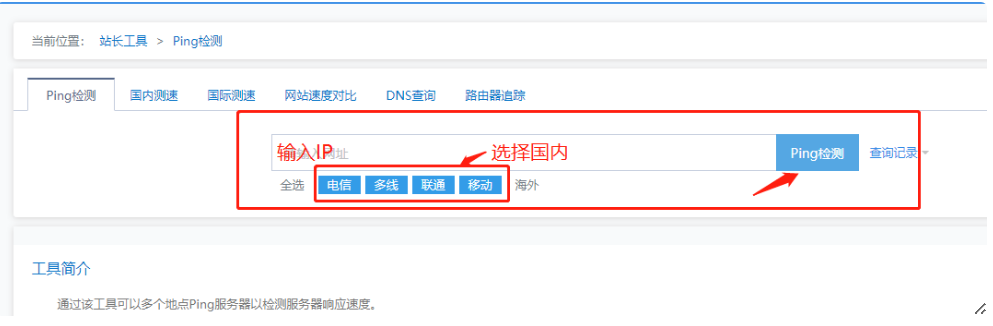
A ping test should be conducted from both domestic (Mainland China) and international locations. You can use online tools for this check, such as ChinaZ: http://ping.chinaz.com/
(1) Domestic Detection
(2) Overseas testing:
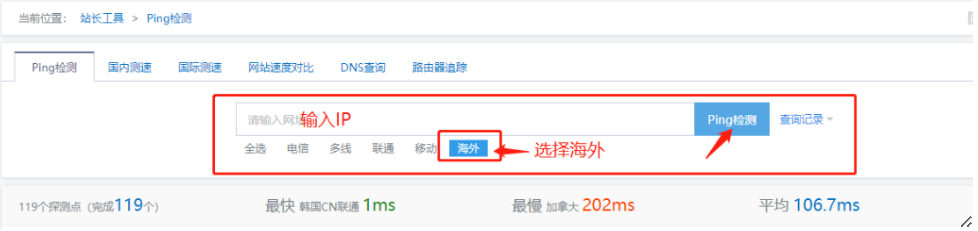
Summary of Ping Test Results
By comparing domestic and international ping results, you can accurately diagnose the state of your VPS:
Reachable Domestically: The IP is functioning normally.
Unreachable Domestically but Reachable Internationally: This indicates the IP is blocked (GFW-ed).
Unreachable Domestically AND Internationally: First, check if your VPS is powered on. Under normal circumstances, an international node should always be able to reach the server. Please ensure the machine is running and retest.
Reachable Both Domestically and Internationally: If SSH still fails to connect, the port is likely blocked. You should proceed to the "Port Scanning" step to verify.
Note on IP Blocks: If you confirm the IP is blocked (unreachable only in China), the most direct solution is to deploy a new VPS to obtain a new IP address. If the blocked server contains important data, do not delete the instance immediately. Instead, take a Snapshot of your disk, create a new instance, and restore the data from that snapshot.
3. Port Scanning Test
To perform a port scan, you need your VPS IP address and your SSH port.
IP Address: Found in your service provider's dashboard.
SSH Port: The default is 22. If you have manually changed your SSH configuration, use your custom port number.
3.1 Domestic Port Testing
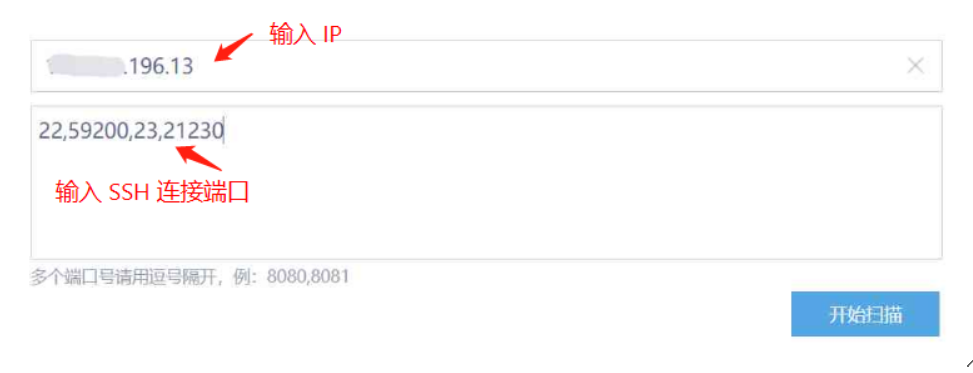
Tool URL: http://tool.chinaz.com/port
Instructions: As prompted by the tool, enter your VPS IP address and the SSH port number, then click "Start Scanning"

(2) Interpreting Results
After clicking the scan button, the tool will automatically check if the SSH port is accessible within China.
Status "Open": This indicates your VPS is not blocked. If you still cannot connect, the issue might be your local network or SSH client settings.
Status "Closed": You cannot yet conclude that the port is blocked. You must perform an international test to cross-reference the results.
3.2 International Port Testing
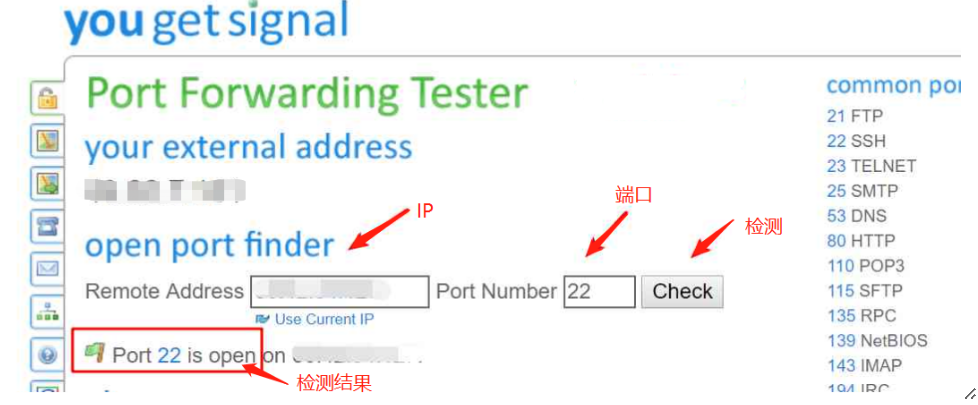
To rule out server-side misconfiguration (such as the SSH service being turned off), use an international testing tool.
Instructions: Enter your server's Remote Address (IP) and the Port Number (e.g., 22), then click Check.
Summary of Port Test Results
By comparing domestic and international results, you can determine the exact cause of the connection failure:
Open Domestically: The IP and port are functioning normally. If you still cannot connect via SSH, double-check your root password and ensure you are using the correct port number in your SSH client.
Closed Domestically BUT Open Internationally: This confirms with certainty that your port or IP has been blocked by the firewall.
Closed Domestically AND Closed Internationally: Check if the VPS is running. This result usually occurs because the server is powered off or the port number was entered incorrectly. (Under normal conditions, a service port should not appear "Closed" from an international node if the service is active).
4. Solutions for a Blocked VPS
Scenario A: IP Block
If the entire IP is unreachable, the only practical solution is to deploy a new VPS to obtain a fresh IP address.
Scenario B: Port Block
Check the Firewall: First, ensure that your server-side firewall (e.g.,
iptablesorufw) is not accidentally blocking the port.Change the SSH Port: You can try changing the default SSH port (22) to a custom high-numbered port.
Redeploy: If changing the port does not restore access, it is fastest to simply purchase a new VPS. (Some users report that port blocks are temporary and may resolve themselves after a few days, provided the IP itself is still healthy).
Best Practices for Migration (Protecting Your Data)
If you find your VPS is blocked (either IP or Port), the most direct solution is to start a new instance and delete the old one. Since most VPS providers (like Vultr) use hourly billing, this transition is very cost-effective.
If you have critical data on the blocked server, follow these steps:
Take a Snapshot: Use the cloud provider’s Snapshot feature to create a full backup of the blocked VPS.
Restore to a New Instance: Deploy a new VPS and select your snapshot as the source. This transfers all your data and configurations to the new IP.
Verify and Clean Up: Once the new VPS is confirmed to be reachable and all data is intact, you can safely delete the old, blocked instance.
Manual Backup: For extremely sensitive data, it is also recommended to download a copy of your files to your local computer before proceeding with the migration. Always prioritize data security before decommissioning any old server.